Where Does Your Application Actually Run?
You just finished writing an application on your laptop. Every feature works. No errors. You're satisfied. But only you can use it, right there on your machine. The moment you want someone else to try it, a simple question appears: where will this application actually run?
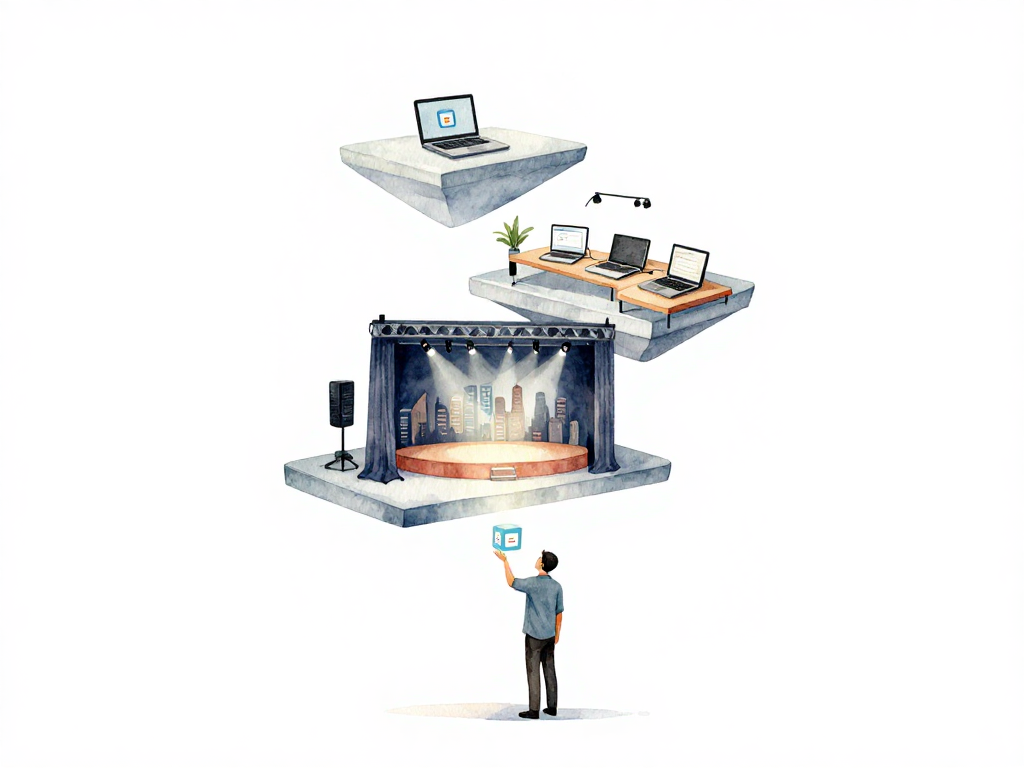
That question is the starting point for understanding environments. An environment is simply a place where an application runs. That place could be your laptop, a coworker's computer, an office server, or a machine in a data center accessed by thousands of people. Each place has different characteristics, and those differences matter.
The Local Environment: Your Safe Sandbox
When your application is still on your laptop, it lives in what's called a local environment. Here, you have complete freedom to experiment. You can change code, restart the application, and see results immediately. Nobody else gets affected if the application crashes. The local environment is the safest place to try new things.
But applications don't stay on laptops forever. At some point, you need to show your work to the team or test whether a new feature works alongside existing ones.
The following flowchart shows how an application typically moves through environments, each with a distinct purpose:
The Development Environment: Where Code Meets
For team collaboration, most teams provide a development environment. This is a shared server where multiple developers integrate their code. The application runs on a machine that resembles a real server, even though real users aren't using it yet.
Think of the development environment as the first place where different pieces of code from different people try to live together. It's where you discover that your change conflicts with someone else's change, or that a library version you used isn't available on the shared server. These discoveries are valuable because they happen early, before anyone else depends on the application.
The Staging Environment: The Dress Rehearsal
The closer an application gets to users, the more carefully you need to protect it. Before reaching users, there's usually a staging environment. Staging is built to be as similar as possible to where the application will actually serve users.
Teams use staging to check whether a new version runs normally, whether there are conflicts with existing data, and whether performance is acceptable. If there's a problem, you want to find it in staging, not in front of users. Staging is where you run through the full deployment process, test database migrations, and verify that monitoring tools catch what they should.
The Production Environment: Where Users Live
Finally, there's the production environment. This is where real users interact with your application. If something goes wrong here, users feel the impact. Production is the most carefully guarded environment. Not everyone can change things there, and every change must go through a clear process.
Production environments often have strict access controls, detailed logging, and comprehensive monitoring. Changes to production typically require approvals, change tickets, and rollback plans. The stakes are higher because the cost of failure includes frustrated users, lost revenue, and damaged reputation.
Why Environment Differences Matter
Here's a critical point that catches many teams off guard: every environment is a different place. An application running on your laptop is not necessarily the same as the application running in staging, let alone production.
Differences can come from many sources:
- Code version: What branch is deployed? What commit? Are there uncommitted changes?
- Configuration: Database connection strings, API keys, feature flags, and environment variables often differ between environments.
- Data: Development databases might have test data, while production has real user data with different volume and patterns.
- System dependencies: Operating system versions, installed libraries, kernel parameters, and even time zone settings can vary.
- Network topology: Load balancers, firewalls, DNS settings, and certificate configurations differ.
The more these differences accumulate, the more likely you'll encounter problems in production that never showed up in other environments. A feature works perfectly on your laptop but fails in production because the production database has a different character encoding. A migration runs fine in staging but times out in production because the production table has millions more rows.
The DevOps Goal: Consistency Across Environments
This is why DevOps teams work hard to make all environments as similar as possible. The goal is simple: if an application runs well in staging, it will most likely run well in production. Consistency reduces surprises.
Achieving this consistency requires treating environments as code. Server configurations, installed packages, and system settings should be defined in version-controlled files, not manually configured on each machine. Containerization tools like Docker help by packaging the application with its runtime environment, reducing differences between where the application runs.
But consistency alone isn't enough. You also need to understand what exactly you're sending to each environment. It's not raw source code. It's something that has been processed and is ready to run. That processed output is called an artifact, and it's what actually gets deployed.
Practical Checklist for Environment Management
Before moving on, here's a quick checklist to evaluate your current environment setup:
- Can you list all environments your application passes through, from local to production?
- Is each environment documented with its purpose, access method, and configuration?
- Are environment-specific configurations stored separately from code?
- Can you reproduce any environment from scratch using automated scripts or configuration files?
- Do you test deployments in staging before production?
- Is there a clear process for who can deploy to each environment?
The Concrete Takeaway
Your application doesn't run on "the server." It runs in a specific environment with its own configuration, data, and dependencies. Understanding each environment's purpose and limitations helps you design better deployment processes, catch problems earlier, and reduce the gap between where code works on your machine and where it needs to work for your users. Start by documenting your current environments and identifying the differences between them. That alone will reveal risks you didn't know existed.